

Quick Summary
Sign a Word document on your iPhone quickly using SignWell or Apple’s Markup tool. SignWell offers secure, legally recognized eSignatures with audit trails and multi-signer support, while Markup allows quick handwritten signatures. Both methods save time, reduce paper use, and let you handle approvals anytime, anywhere.
Not Sure How to sign Word Documents on your iPhone?
Signing a Word document from your phone can feel frustrating, especially when you’re on the move or don’t have access to a laptop. Maybe a client is waiting, you need to approve a contract quickly, or you simply want a reliable way to sign documents without juggling multiple apps.
The good news is that your iPhone already gives you simple, secure options for adding a signature, no printing, scanning, or extra software required.
In this SignWell guide, we’ll show you two easy ways to sign Word documents on your iPhone, so you can handle approvals anytime, anywhere.
But first…
Why Listen To Us?
At SignWell, we’ve helped over 65,000 businesses simplify workflows with secure, legally binding eSignatures. Our expertise in digital signatures ensures your documents are signed efficiently, securely, and in compliance with international laws. Trust us to guide you through reliable, easy methods for signing Word Documents on an iPhone.
What Does it Mean to Sign a Word Document on an iPhone?
Signing a Word document on an iPhone means adding your signature directly to a Word file using your device. Instead of printing, signing, and scanning, you can electronically sign the document in just a few taps.
Whether you’re approving contracts, filling out forms, or signing agreements, signing a Word document on your iPhone is fast, convenient, can be legally binding, and saves you the hassle of printing or handling paper.
With tools like SignWell, you can easily sign Word files, share them, view audit trails, and maintain document integrity, all from the convenience of your iPhone.
Why is signing a Word Document on an iPhone Important?
- On-the-Go Convenience: Review and sign documents wherever you are, even when you do not have access to a computer.
- Time Efficiency: Quickly sign and share documents via email or messaging apps.
- Eco-Friendly: Complete the entire process digitally, avoiding the need for printing and scanning.
- Legally Binding: When you use the right eSignature platform, your signed documents can meet legal requirements and hold up as valid electronic signatures.
- Professionalism: Enables fast responses, improving your efficiency and reliability.
How to Sign a Word Document on iPhone
Method 1: Using SignWell’s FREE Sign Documents Online Tool (Recommended)
At SignWell, we offer a free, secure document signing tool that allows you to upload, sign, and download files effortlessly, all from your iPhone. It supports multiple file types, including Word documents, PDFs, and images. The tool is easy to use, legally binding, and compliant with both U.S. and international eSignature laws, ensuring your documents are signed with confidence and privacy.
Here’s how it works:
Step 1: Prepare the Word Document You Want to Sign
Make sure the Word document you need to sign is already saved or downloaded to a folder that’s easily accessible on your iPhone. If not, take the necessary steps to save it before proceeding.
Step 2: Open the SignWell Document Sign Tool on your iPhone
- Using your preferred browser on your iPhone, navigate to the SignWell document sign tool page: SignWell Document Sign Tool.
- Once the page loads, you’ll see a marked box prompting you to drag and drop your document, or a yellow button to select your file. No sign-up is required.
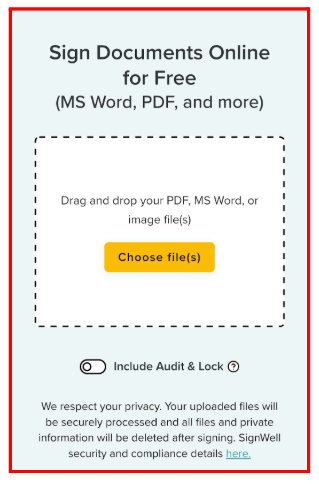
- Tap the yellow button and navigate to the folder where you have the document saved. You can upload up to three documents at a time.
- After selecting your document, you’ll have the option to include an audit trail, which tracks signing activity for enhanced security.
Step 3: Sign the Document
- After selecting your preferences, click Sign Document(s). Your document will open in a dedicated preview page.
- At the bottom of your screen, you’ll see fields you can drag and drop onto your document where you want to sign, including:
- Signature
- Initials
- Checkbox
- Text and Date
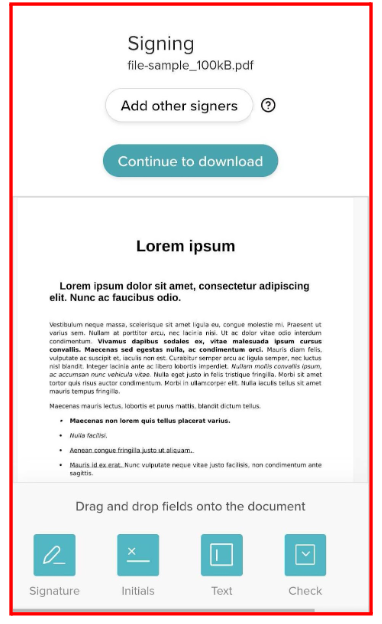
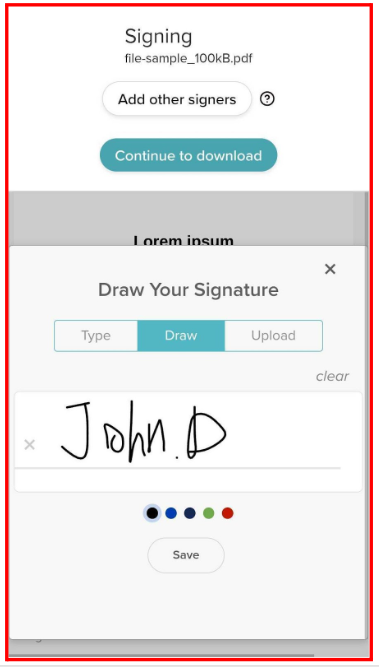
- Drag the Signature field to the area where you’d like to sign. You’ll have three options to add your signature:
- Type: Type your name and choose a font style.
- Draw: Draw your signature using your mouse or touchpad.
- Upload: Upload an image of your signature.
Step 4: Add Other Signers (Optional)
If others need to sign, tap Add other signers. This feature requires a free SignWell account, which also unlocks advanced workflow tools like setting signing order, using templates, bulk sending, reminders, and secure document storage.
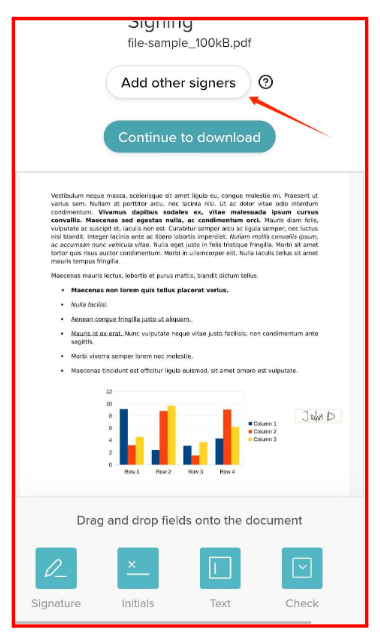
Step 5: Download the Signed Document
- After placing your signature, click Continue to Download. SignWell processes your document in seconds. You can choose to:
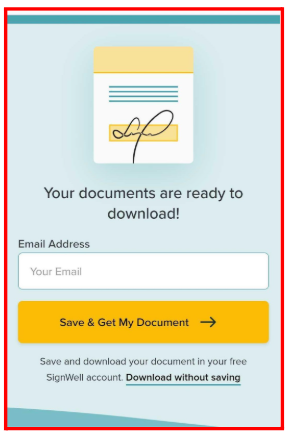
- Enter Your Email: Input your email and click Save & Get My Document to save the signed Word file to your free SignWell account and download it.
- Download Without Saving: Click this option to immediately download a fully signed, secure copy directly to your device without creating an account.
Your Word document is now signed, secure, and ready to share.
Method 2: Using the iPhone’s Markup Tool
This method lets you add a handwritten signature using Apple’s built-in Markup tools. It works for quick, informal signing, but it does not offer audit trails, identity verification, or legal safeguards you get with a dedicated eSignature platform like Signwell.
Step 1: Open the Word Document
- Locate the Word document you want to sign in your Files app or email attachment.
- Tap on the file to open it.
Step 2: Access Markup Tools
- Tap the Markup button (a pen icon) or look for the Markup option in the share menu, depending on the app.
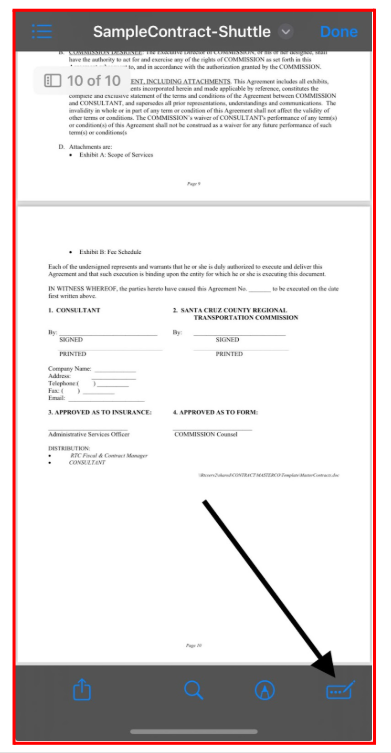
Step 3: Add Your Signature
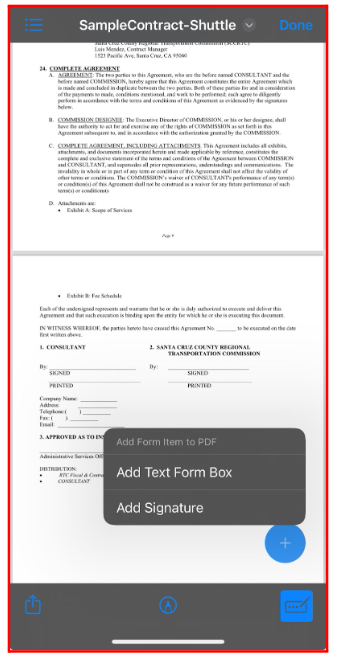
- In the Markup toolbar, tap the + (Add) button.
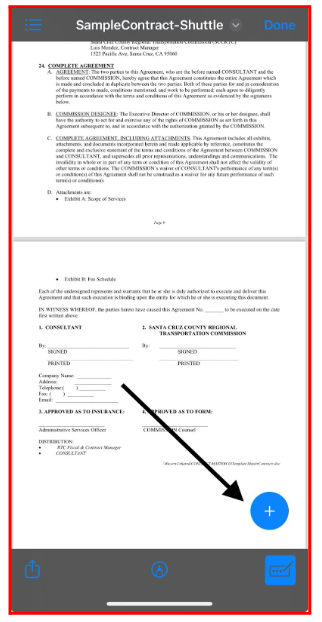
- Click on Add Signature.
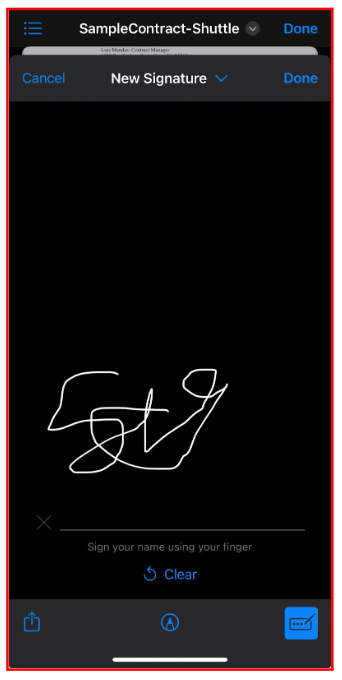
- Use your finger to sign your name on the screen.
- Tap Done when you’re satisfied with the signature.
Step 4: Place the Signature
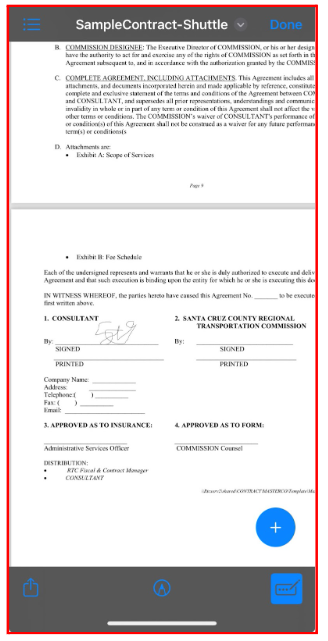
- Drag your signature to the desired location on the document.
- Resize it if necessary by dragging the dots along the outline.
Step 5: Save and Share
- Once your signature is in place, tap Done or Share to save the signed document.
- ZUse Mail, Messages, AirDrop, or any other app to send the signed file.
See our guide on how to sign a PDF on any phone.
Why SignWell is Our Preferred Option for Signing Word Docs on iPhone
Built For Proper Electronic Signatures, Not Just Scribbles
Signing with Markup only adds a visual signature. SignWell actually treats your signature as part of the document signing process. For example, if you are signing a lease, freelance agreement, or consent form, SignWell records the signing action rather than just pasting a signature image onto the page.
Easy To Use When You Are Away From Your Computer
Imagine receiving a contract while commuting or traveling. With SignWell, you can open the link in Safari, upload the Word file, sign it, and download the completed document in minutes, all from your iPhone. No apps, no laptop, no extra steps.
Free And Instant When You Just Need One Signature
If you only need to sign a single document, like a school form, NDA, or client agreement, you can do it without creating an account. This makes it ideal for one-off situations where speed matters more than setting up new software.
Adds Proof And Accountability To Your Signature
When enabled, SignWell creates an audit trail that shows when the document was opened and signed. This is helpful if someone later asks when you signed or questions whether the document was completed properly.
Useful Even When Other People Need To Sign
If a document needs multiple signatures, like a rental agreement or shared contract, SignWell lets you invite others to sign in order. Each person is notified when it is their turn, which helps avoid confusion and follow-ups.
See our article on how to send documents for eSignature
Safer Than Sending Signed Files Back And Forth
Instead of emailing screenshots or marked-up files, SignWell keeps the document intact and protected. Once signed, the file is locked against changes, which helps prevent accidental edits or tampering before you share it.
Works With Multiple File Types, Not Just Word
SignWell supports PDFs, images, and other document formats too. So if you receive a PDF contract, a Word form from school, or an image-based agreement, you can sign everything in one place without juggling different apps or converting files.
Simplify Word Document Signing on iPhone With SignWell
Signing Word documents on your iPhone is simple and efficient with the right tools. Whether you choose SignWell for secure, legally binding eSignatures or the built-in Markup tool for quick, personal signing, both methods cater to different needs.
SignWell’s eSignature solution stands out for its advanced features, including reusable templates, real-time tracking, and comprehensive audit trails. It’s the ideal choice for professional eSignature workflows, ensuring compliance and security for Word documents.
Ready to transform the way you sign Word documents? Try SignWell for free today.
Frequently Asked Questions (FAQs)
1. Can I sign a Word document on my iPhone without an internet connection?
Yes, with Markup, you can sign documents offline. However, tools like SignWell require an internet connection to upload, secure, and track your signatures.
2. Are signatures added through SignWell legally recognized worldwide?
SignWell complies with U.S. eSignature laws (ESIGN and UETA) and international regulations such as eIDAS, making signatures legally binding in many countries, subject to local requirements.
3. Can I edit a Word document after signing it in SignWell?
Once a document is signed and finalized in SignWell, it’s locked to prevent changes. You would need to upload a new version to make edits.
4. Can I sign multiple Word documents at once on my iPhone?
Yes, SignWell allows batch signing of up to three documents at a time, which is helpful for contracts, forms, or recurring approvals.
5. How do I know if someone else has signed the document I sent?
SignWell provides real-time notifications and an audit trail for each signer, so you can see exactly when a document was viewed and signed.