
How To Insert a Signature in Word Mobile (We Cover 3 Easy Methods)
8 mins
Sign Word documents on mobile using three methods: legally binding eSignatures via SignWell, drawing directly in Word, or inserting a signature image. SignWell supports multiple signers, audit trails, and secure handling, while drawing or image methods suit informal approvals. Streamline approvals and share signed documents instantly from your phone.
Ever been stuck needing a signature on a Word document while away from your computer? Maybe you’re closing a deal, approving a contract, or signing off on HR paperwork, and all you have is your phone.
Printing, scanning, and emailing back and forth isn’t just slow; it’s frustrating, unprofessional, and error-prone.
In this SignWell article, we’ll show you exactly how to insert a signature in Word Mobile using three practical methods. You’ll also discover how to manage multiple signers and keep your Word documents organized and ready to share directly from your mobile device.
But first…
SignWell has helped more than 65,000 businesses sign over 10 million documents, which gives us deep experience in the electronic signature field. We work closely with users every day to understand real challenges and create simple solutions. This hands-on insight helps us clearly explain the easiest ways to add signatures on Word Mobile without confusion.

We recommend SignWell because it’s fast, secure, and intuitive. It lets you add legally binding eSignatures to Word documents directly from your mobile device, giving you complete control over your document workflow.
Open the Word doc on your mobile device and save it to a location you can easily access, like your device storage or cloud drive. Rename it if needed so you can find it quickly.
From your mobile browser, visit SignWell’s Free Document Signing Tool. No app download is required, and you can get started without creating an account.
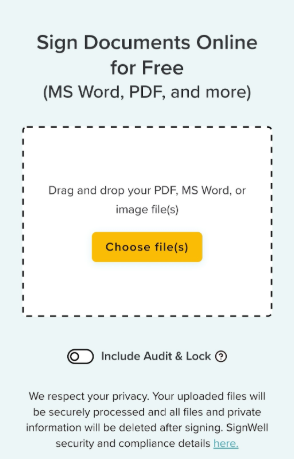
Tap Choose File(s) and select your Word document. You can upload up to three files at once.
While uploading, you’ll see a toggle option:
Tap Sign Document to open the document in SignWell’s mobile-friendly signing interface.
The document will open in preview mode. Drag and drop the fields you need:
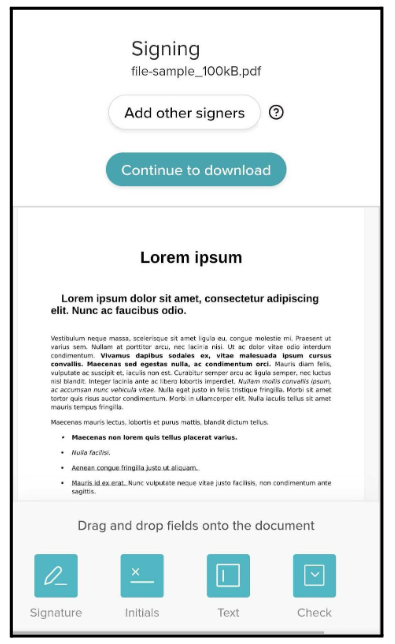
Place the signature field where it’s required in your document. (Typically near the bottom where approvals are required).
You have three options to create your eSignature on mobile:
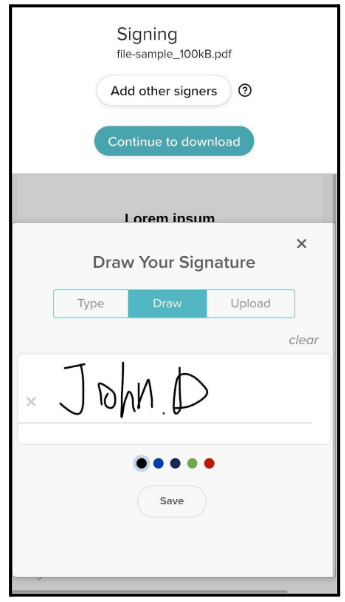
If others need to sign, tap Add other signers. This feature requires a free SignWell account, which also unlocks advanced workflow tools like setting signing order, using templates, bulk sending, reminders, and secure document storage.

Once the signature is in place, tap Continue to Download. SignWell processes your document in seconds. You can choose to:
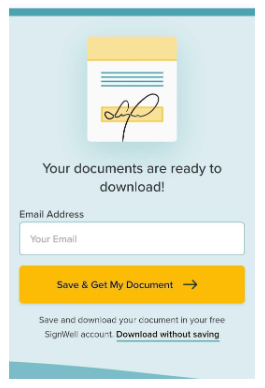
Your Word document is now signed, secure, and ready to share.
Also see our article on How to Sign a Word Document.
This method is a quick and free option, but it is not legally binding. It’s useful for informal approvals or personal notes, but for official documents, we recommend using Method 1 (SignWell).
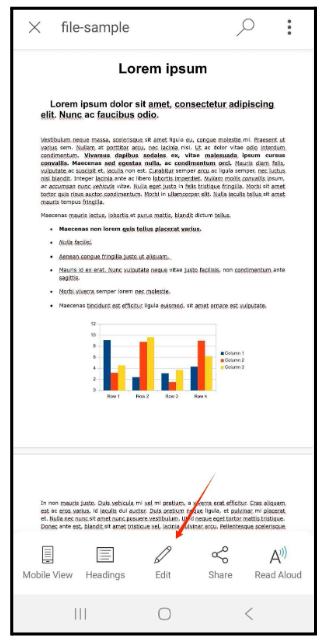
Locate the Word document you want to sign on your mobile device and open it using the Microsoft Word app. This tutorial focuses on Word Mobile for Android, but the steps are very similar on iOS.
At the bottom of the document, tap the pencil/edit icon to open editing options. Then, tap the small upward arrow at the far right to expand the menu.
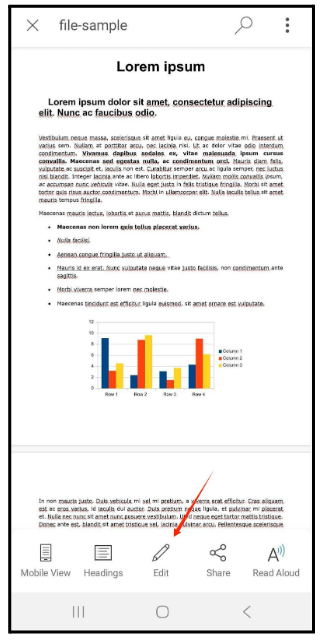
Switch the menu from Home to Draw.
In the Draw menu:
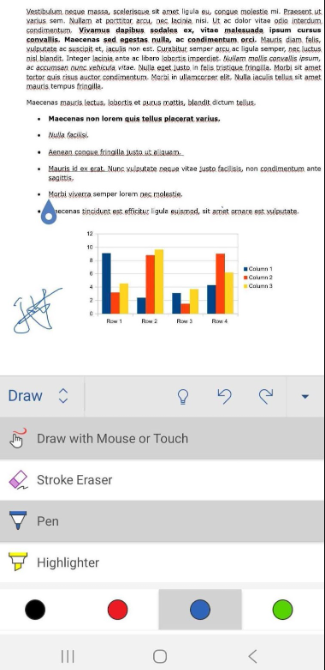
Touch the document preview above the menu and draw your signature using your finger, stylus, or mouse.
If you make a mistake:
Once your signature looks correct, collapse the Draw menu using the downward arrow.
Tap the three dots menu icon at the top right of the preview interface. You can either:
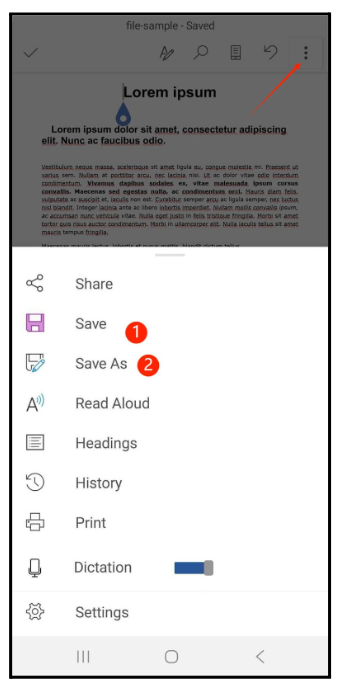
After saving, your signed document is ready to share via email, cloud drive, or any other sharing method supported by your device.
Also see our article on How to Sign a PDF on Android
This is a handy option when you want your real handwriting on a document. It also looks clean, feels personal, and works well for informal approvals. However, it is not our recommended method for legally binding signatures.

2. Use your mobile device to take a clear, well-lit photo of the signature and save it to your device’s gallery for easy access.
In the Insert menu, tap Picture.
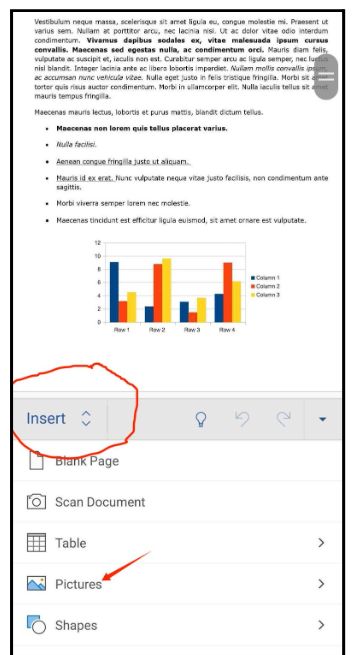
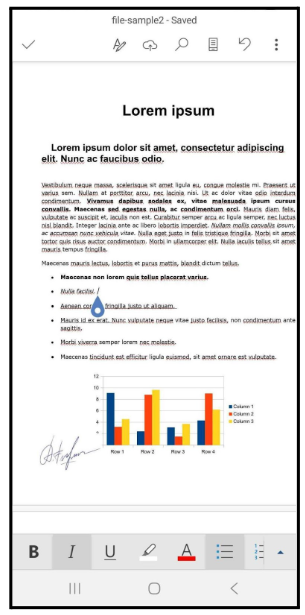
4. Once it looks correct, collapse the Insert menu using the downward arrow.
Tap the three dots menu at the top right of the preview screen. Choose one of the following:
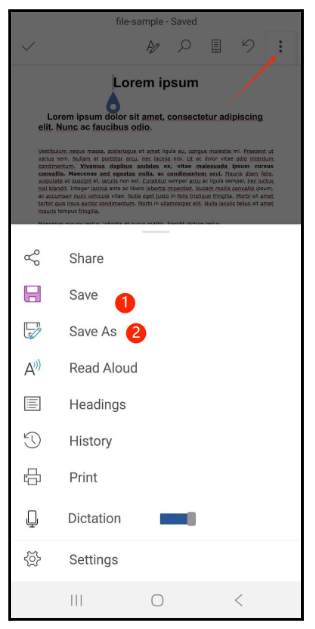
After saving, your signed document is ready to share through email, cloud drive, messaging apps, or any share option available on your device.
Also see our article on How to Sign a PDF on iPhone.
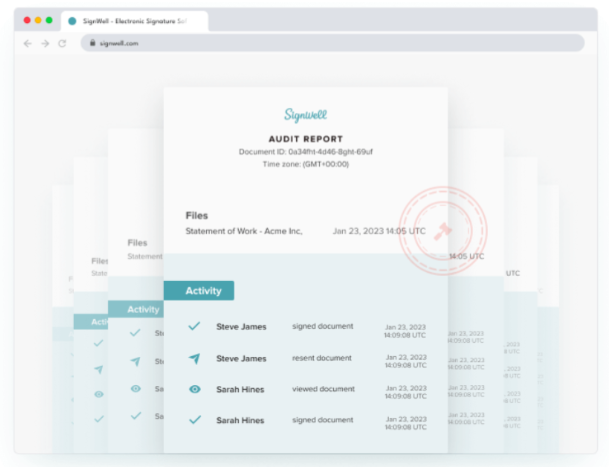
Unlike drawn or image-based signatures, SignWell gives you a legally binding signature with a complete audit trail. This includes time stamps, signer details, IP addresses, and activity logs. It meets major standards such as the U.S. ESIGN Act and eIDAS, so your signed Word documents hold up in real business and legal situations.
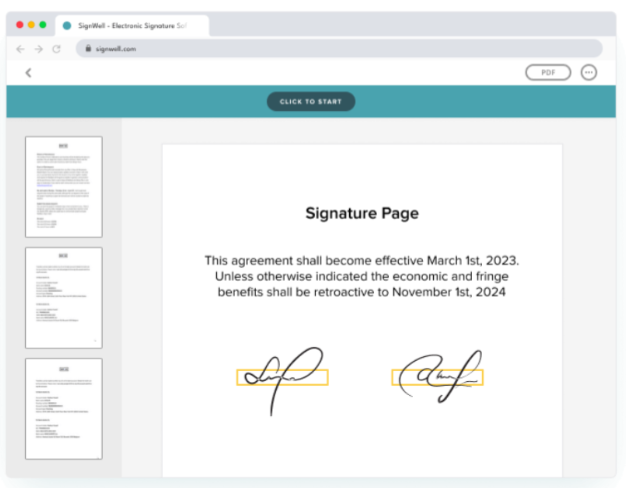
SignWell runs directly in your mobile browser, which means there is no need to install an app or deal with compatibility issues. Whether you use Android or iPhone, you can upload, sign, and download your Word document in minutes. You can even move between devices without losing work.
See our article on How to Sign a PDF in Chrome.
You can prepare, send, sign, track, and organize everything inside one simple interface. For example, if you are approving a contract on the go, SignWell lets you place fields, add signers, set reminders, and finalize the document without jumping between multiple apps.
Mobile screens are small, which makes it easy to place a signature in the wrong spot or miss required fields. SignWell gives you guided field placement and clear prompts that walk you through the document. This prevents mistakes that could delay approvals or force you to redo the file.
If your Word document needs signatures from a manager, client, or coworker, SignWell makes this simple. You can add multiple signers, assign fields, and choose the order in which people must sign. This is especially useful for people who handle HR approvals, partnerships, or multi-step contracts.
Many Word documents contain private information. SignWell uses encryption, secure transfer, and optional document locking so your files stay protected from unauthorized changes. You can turn on audit and lock features with one tap, which keeps the signed version tamper-proof.
SignWell removes the back-and-forth that slows mobile signing. Instead of emailing screenshots or waiting for someone to print and scan, your recipient gets a clear digital document they can sign instantly. A contract that would typically take a day can be completed in minutes.
Drawn signatures and photo-based signatures can look shaky or distorted on mobile. SignWell creates a crisp, consistent signature that matches the needs of professional documents such as agreements, compliance forms, legal paperwork, and vendor contracts. The final file looks polished and ready for sharing.
Tired of juggling printers, scanners, and email chains just to get a signature? Mobile document approvals can be frustrating and time-consuming, slowing down your workflow and delaying important decisions.
With SignWell, inserting a signature in Word Mobile is fast, secure, and simple. You can create legally binding eSignatures, add multiple signers, track progress, and manage documents, all from your phone. SignWell ensures your approvals are professional, compliant, and error-free every time.
Ready to simplify your mobile signing process? Get started with SignWell today—It’s FREE.
 .
.businesses served
customer support satisfaction
documents signed