

The SignWell MCP gives your AI assistant direct access to your SignWell account. Once it’s installed (covered in our setup guide), the useful question is what to actually build with it.
This guide walks through seven workflows that take real time off a developer’s day. Each one includes the prompt you’d use, what happens under the hood, and code snippets for patterns that need them. They range from quick in-editor moves to full agent builds.
Pick and choose. Some will apply to your work, others won’t. The goal is to show the shape of what’s possible so you can spot the opportunities in your own stack.
Prerequisite: SignWell MCP installed and connected to at least one of Claude Desktop, Claude Code, or Cursor. If you haven’t done that yet, start with the setup guide.
Workflow 1: Scaffolding an API integration without leaving your editor
You’re in Cursor, building a feature that sends contracts to customers when they upgrade. Normally you’d:
- Open SignWell docs in a browser tab.
- Open Postman to test the create document endpoint.
- Open your SignWell dashboard to grab a template ID.
- Write the integration code.
- Switch back to test it.
The MCP compresses that to a single session:
I’m building a feature that sends our mutual NDA to new customers. In my Node.js service, write a function that takes a customer’s email and name and sends them the mutual NDA template. Before you write it, use the SignWell MCP to list my templates so we pick the right ID, and send one test document to [email protected] so we can inspect the response shape.
Cursor calls list_templates, finds the right template, calls create_document with test_mode: true, shows you the response, then writes code that mirrors the shape it just observed:
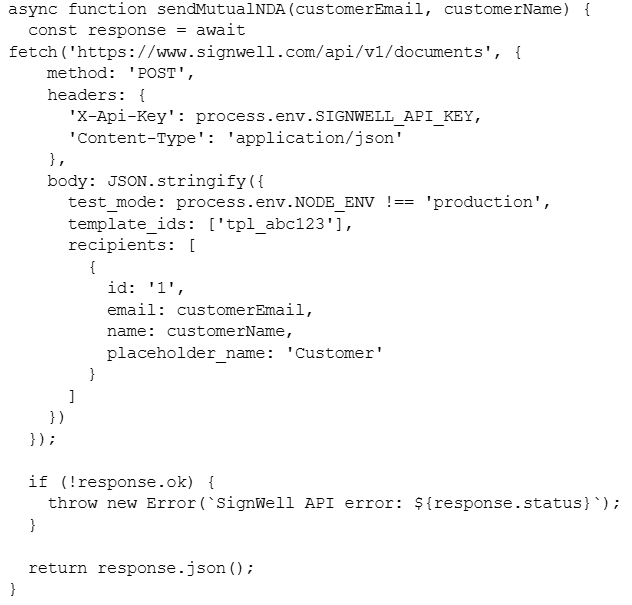
The code reflects the real template ID, the placeholder names SignWell returned, and the actual response shape. Normally, you’d guess at these from docs and fix mistakes during testing. Here, the MCP tested it for you first.
The same pattern works for Python, Ruby, Go, or whatever stack you’re in. The MCP provides the assistant with live account context rather than stale documentation, so the generated code is more likely to work on the first try.
Workflow 2: The webhook development loop
Webhook integrations are tedious to develop. Register a webhook, send a document, wait for the event, check your endpoint logs, iterate. Changing your endpoint URL means re-registering the webhook. Multiply that by a few iterations, and you’ve lost a morning.
The MCP makes the loop tight:
- Register a webhook at https://my-tunnel.ngrok.io/signwell for all document events, then create a test document and send it to {{email}} so I can see the payload hit my endpoint.
That’s two tool calls: create_webhook and create_document. The assistant does both and confirms the IDs for each.
When you need to change your tunnel URL:
- Delete the old webhook and register a new one at https://new-tunnel.ngrok.io/signwell
The assistant lists existing webhooks, finds yours, deletes it, and creates a new one. Two minutes of clicking through the dashboard compressed into one instruction.
One tip: SignWell sends events for document_sent, document_viewed, document_signed, document_completed, and document_declined. When testing, ask the assistant to walk you through each state so you see every event your endpoint might receive. When testing, ask the assistant to walk you through each state so you see every event your endpoint might receive:
- Create a test document, then retrieve its state after each action, so I can see all the fields that change
The assistant can’t sign the document for you, but it can create it and pull its state at each step. That’s usually enough visibility to confirm your webhook handler does the right thing.
Workflow 3: Debugging stuck signature flows
Customer support pings you: “Our customer says they signed the contract, but nothing happened on our end.” You need to figure out whether the document actually got signed, whether your webhook received the event, and whether the document is in some weird intermediate state.
Without the MCP, this means digging through SignWell’s dashboard, your webhook logs, and your database. With it:
- Look up SignWell document doc_xyz789 and tell me its current status, the audit trail, and which signers haven’t completed it yet.
The assistant calls get_document, which returns the full document state, including signer status, timestamps, and audit events. You can see instantly whether the issue is on SignWell’s side, in the signing flow, or in your webhook handler.
Pair this with your own logs:
- Document doc_xyz789 shows as signed on SignWell’s side, but our database has it as pending. Help me figure out where the disconnect is.
The assistant pulls the document data and helps you reason about what should have happened in your webhook handler. For support engineers and on-call developers, this reduces a 20-minute investigation to 2 minutes.
Workflow 4: Building a signing agent with the Claude Agent SDK
If you want a programmatic version of the MCP, the Claude Agent SDK lets you embed SignWell capabilities inside your own application. A short script gives you a chat interface that can send, track, and manage documents:
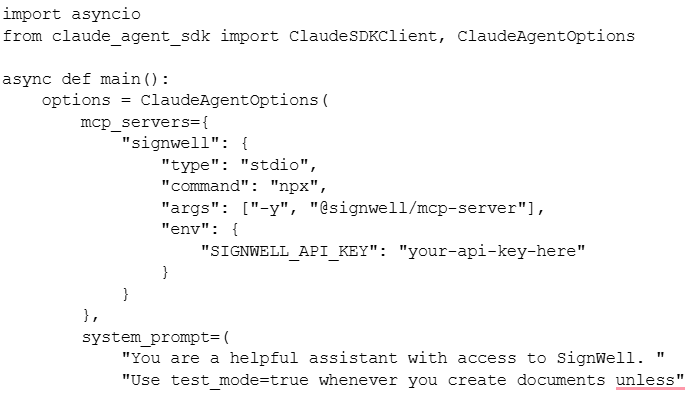
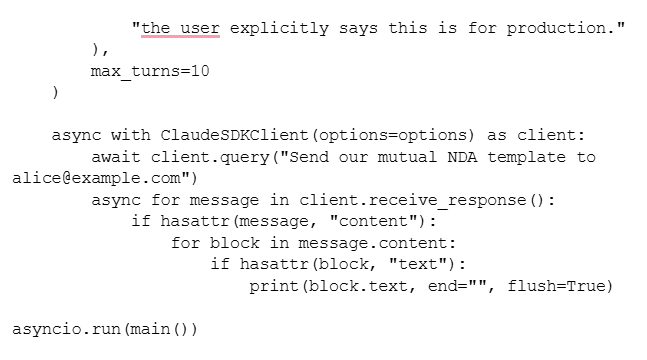
This runs standalone. The agent loads the SignWell MCP, sees the tools it exposes, and uses them to fulfill your request. The system prompt encodes your conventions (always test mode unless told otherwise) so the agent behaves predictably.
Where this gets powerful is inside a larger app. Wrap it in an API endpoint, connect it to your CRM, or expose it through an admin panel. Internal users get a natural-language interface to document operations without learning SignWell’s API.
A pattern some teams use: embed this kind of agent in Slack. When a rep needs to resend a contract or check on a signer, they message the bot. The bot talks to the MCP and replies back. The rep never leaves Slack, and you never build a custom document management UI.
Workflow 5: Template-driven contract sending
If you maintain a library of SignWell templates, the MCP lets you reference them by meaning instead of ID.
- Send our standard SOW template to [email protected] with the project name field set to “Website Redesign” and the total amount field set to “$15,000”
The assistant lists your templates, picks the one that matches “SOW,” looks up the template’s fields, and populates them correctly before sending.
This is a small thing that compounds. Without it, every template-based send is:
- Look up template IDs in the dashboard.
- Look up field api_id values in the template config.
- Construct the API call with the right structure.
With the MCP, all of that is handled by the assistant, which reads live account data. You state intent, the assistant translates.
For teams with many templates, this also means non-developers can send templated documents through their assistant of choice. A customer success manager using Claude Desktop can send a renewal agreement without touching SignWell’s UI or asking engineering to build a button.
The caveat: for high-stakes documents, always review the generated call before it sends. The assistant is inferring from template names and your instructions. A typo in the amount field becomes a typo in a signed contract. Test mode is your friend here, at least until you trust the pattern.
Workflow 6: Bulk send monitoring and cleanup
If you run bulk sends through the SignWell API, visibility gets thin once more than a handful are in flight. The MCP gives you quick situational awareness.
- List my recent bulk sends and tell me which ones have incomplete recipients.
The assistant calls list_bulk_sends, retrieves each one’s data, and summarizes who’s outstanding. You can follow up:
- For the Q4 vendor agreements bulk send, which recipients haven’t opened the document yet?
Useful for a salesperson or ops person running a campaign. They can identify who to nudge without exporting CSVs from the dashboard.
For cleanup, ask the assistant to cancel pending requests that have gone stale:
- Show me bulk send documents from more than 30 days ago that are still pending, and delete them.
The assistant shows you the list first (this is important; it’s destructive) and proceeds with deletion only after you confirm. Good hygiene is built into the interaction.
Workflow 7: Multi-tool agents that combine SignWell with the rest of your stack
The strongest long-term pattern is not SignWell alone. It’s SignWell as one tool among many.
Picture an agent with MCP servers for your CRM, your database, and SignWell. Now you can do this:
- Find customers in my CRM whose contracts renew in the next 30 days. Check our database to see if we’ve already sent them a renewal document. For anyone we haven’t, send our renewal template with their current plan pricing filled in.
Three MCPs working together:
- CRM MCP queries upcoming renewals.
- Database MCP filters out already-sent.
- SignWell MCP creates the renewal documents.
What was a scheduled cron job, a custom script, and a template rendering system is now a prompt that the agent executes on demand.
The config pattern:
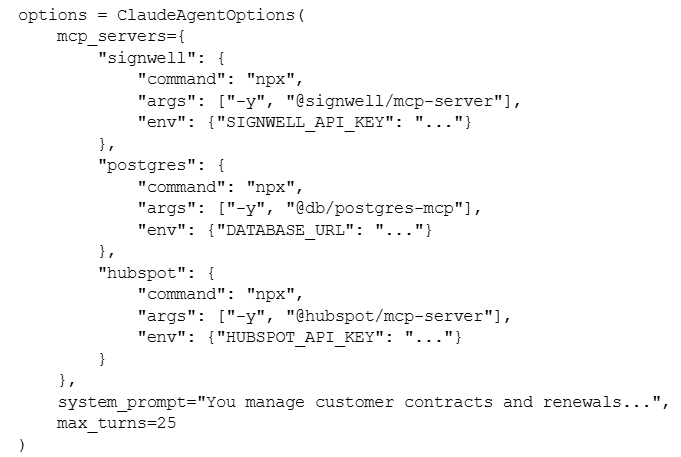
All three MCPs load together. The agent sees a unified toolset and selects the tools it needs for each request.
One honest caveat: as the tool surface grows, the agent’s tool-picking accuracy drops. Fifteen MCPs are not better than three. Start narrow, add MCPs as needed, and write a tight system prompt that tells the agent which tools to prefer for which tasks.
Patterns worth remembering
A few things hold across all seven workflows:
The MCP compresses multi-tool dev workflows into single sessions. That’s the whole value proposition. If a task currently takes you four tabs, it’s probably a candidate.
Test mode is your friend during exploration. Set it, keep it, only turn it off when you mean to send something real.
Multi-MCP agents are the strongest long-term pattern, but they add complexity. Two MCPs is a good team. Ten gets messy.
Destructive actions (delete, cancel) should always be confirmed explicitly. The assistant will generally ask, but build your system prompts to enforce it.
Where this goes next
The SignWell MCP is one piece of a broader shift toward AI assistants that can act on your behalf, not just answer questions. Document signing is a natural fit because most teams already have API access they barely use, and the MCP gives them a way to use it from wherever they already work.
If you haven’t set the MCP up yet, start with the setup guide.
If you’re already set up and want to dig into the SignWell API more broadly, the full reference is available at developers.signwell.com.
Building something interesting? We’d love to hear about it.