

Quick Summary
Signing PDFs in Chrome lets you add legally binding electronic signatures directly in your browser, without downloads. Tools like SignWell and DocHub enable secure, cross-device signing, step-by-step workflows, multiple signers, and easy sharing. SignWell adds advanced features, audit trails, and team collaboration for fast, efficient, and compliant PDF signing.
Struggling to Sign PDFs in Chrome?
If you’ve ever found yourself scrambling to print, sign, and scan a PDF just to get a document back to someone, you know how frustrating it can be. Signing PDFs should be quick and easy, especially when you’re working directly from your browser.
In this SignWell article, we’ll walk you through two simple ways to sign PDFs in Chrome. First, we’ll introduce SignWell, a secure platform for legally binding eSignatures. Then we’ll explore a reliable Chrome extension for fast, convenient signing.
But first…
Why Trust Us?
At SignWell, we’ve helped over 65,000 businesses simplify workflows with secure, legally binding eSignatures. Our expertise in digital signatures ensures your PDFs are signed efficiently, securely, and in compliance with international laws. Trust us to guide you through reliable, easy methods for signing PDFs in Chrome.
What Does it Mean to Sign a PDF in Chrome?
Signing a PDF in Chrome means adding your electronic signature directly in the browser. This eliminates the need for downloading additional software, offering a quick and seamless way to complete forms, contracts, or agreements.
Why Sign PDFs in Chrome?
- Quick Access Without Downloads: Signing PDFs directly in Chrome means you don’t need to install extra software, saving time and hassle.
- Cross-Device Convenience: You can open and sign PDFs on any device with Chrome, whether it’s a laptop, tablet, or phone.
- Secure and Legally Binding: Using a trusted eSignature solution ensures your PDF signatures comply with U.S. and international eSignature laws.
- Streamlined Workflow: A tool like SignWell guides recipients through signing PDFs step by step and automatically tracks completed documents, making the process seamless.
- Faster Collaboration: Signing PDFs in Chrome lets multiple team members review and approve documents online, speeding up projects and keeping everyone on the same page.
How to Sign a PDF in Chrome
Method 1: Using SignWell’s FREE PDF Sign Tool
At SignWell, we offer a free, secure PDF signing tool that allows you to upload, sign, and download documents effortlessly within Chrome. It’s easy to use, legally binding, and compliant with both U.S. and international eSignature laws, ensuring your documents are signed with confidence and privacy.
Here’s how it works:
Step 1: Prepare the PDF You Want to Sign
Make sure the PDF you need to sign is already saved or downloaded on your device. If not, take the necessary steps to save it before proceeding.
Step 2: Visit the SignWell PDF Sign Tool Page
- Open a new Chrome tab and navigate to the SignWell PDF sign tool page
Once the page is loaded, you’ll see a marked box prompting you to drag and drop your PDF or a yellow button to choose your PDF file. No sign-up required.
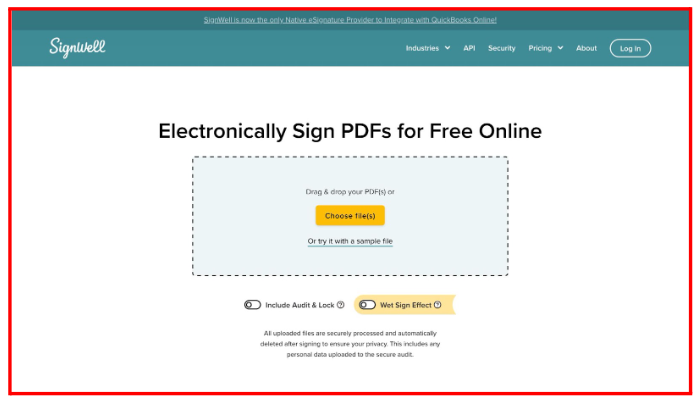
- Click the button and select the PDF you previously saved to your computer. You can upload up to three PDFs at a time.
- There are two toggle options:
- Include Audit & Lock: Adds an audit trail and locks the PDF from changes after signing.
- Wet Sign Effect: Adds a “wet sign” effect to the signature if you prefer a more traditional appearance
Step 3: Sign the Document
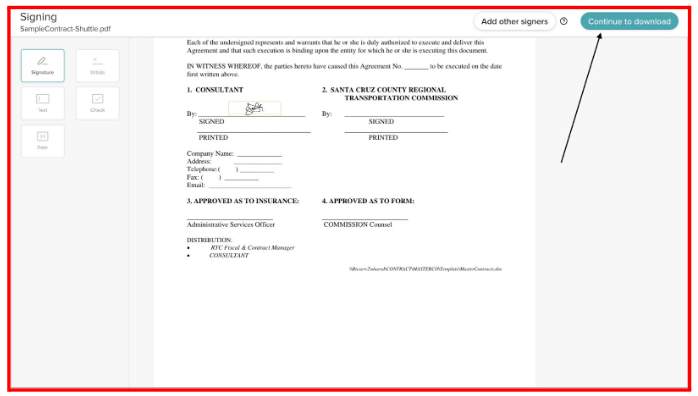
- After selecting your preferences, click Sign PDF(s). Your document will open in a dedicated preview page.
On the left side, you’ll see fields below:
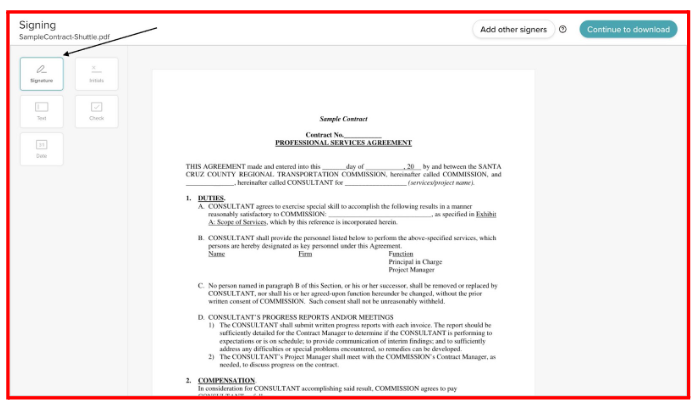
- Signature
- Initials
- Checkbox
- Text and Date
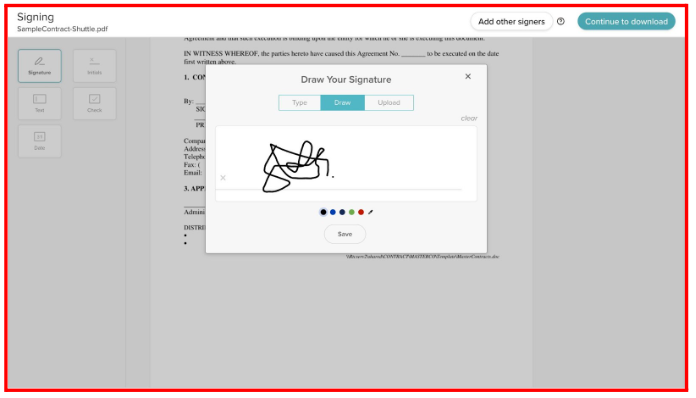
- Drag the Signature field to the area where you’d like to sign. You’ll have three options to add your signature:
- Type: Type your name and choose a font style.
- Draw: Draw your signature using your mouse or touchpad.
Upload: Upload an image of your signature.
Step 4: Add Other Signers (Optional)
If others need to sign, click Add other signers at the top. This feature requires a free SignWell account, which also unlocks advanced workflow tools like setting signing order, using templates, bulk sending, reminders, and secure document storage.
Step 5: Download the Signed PDF
- After placing your signature, click Continue to Download. SignWell processes your document in seconds. You can choose to:
- Enter Your Email: Input your email and click Save & Get My Document to save the signed Word file to your free SignWell account and download it.
- Download Without Saving: Click this option to immediately download a fully signed, secure copy directly to your device without creating an account.
Your PDF is now signed, secure, and ready to share.
Method 2: Using the DocHub Chrome Extension
The DocHub Chrome extension makes signing PDFs seamless by integrating directly with your Chrome browser or Gmail inbox.
Here’s a step-by-step guide to using DocHub to sign PDFs in Chrome:
Step 1: Install the DocHub Chrome Extension
- Open the Chrome Web Store in your Chrome browser.
- In the search bar, type “DocHub” to find the extension.
Click “Add to Chrome” and confirm the installation.

- The DocHub icon will appear in your browser’s extensions bar once installed.
Step 2: Prepare the PDF You Want to Sign
From Your Gmail Inbox
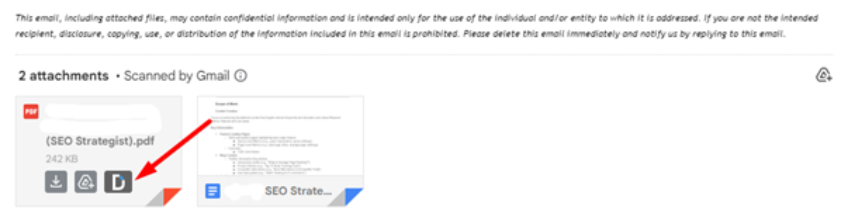
- Open the email containing the PDF attachment you need to sign.
- Hover over the PDF attachment, and click the DocHub (D) icon to import the PDF into the DocHub preview page.
From a Web URL or Online PDF
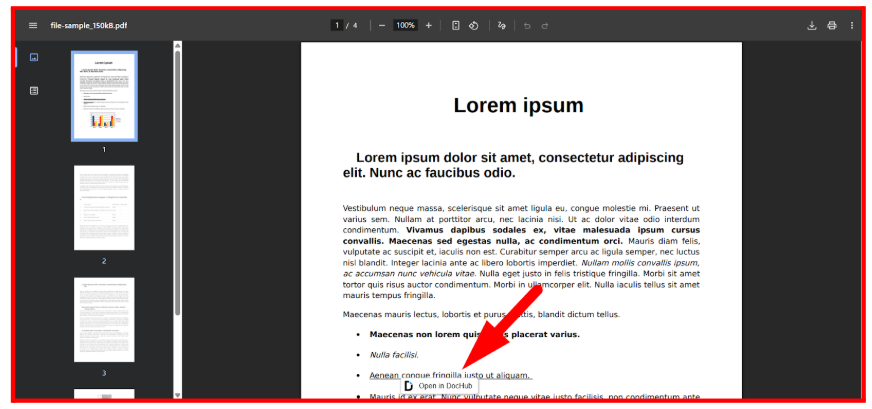
- Open the PDF you want to sign in a Chrome tab.
- At the bottom of the open PDF, click on the “Open in DocHub” button to import the file into DocHub’s preview page.
Note: If you don’t already have a DocHub account, you will be prompted to sign up or log in before proceeding.
Step 3: Add Your Signature to the PDF
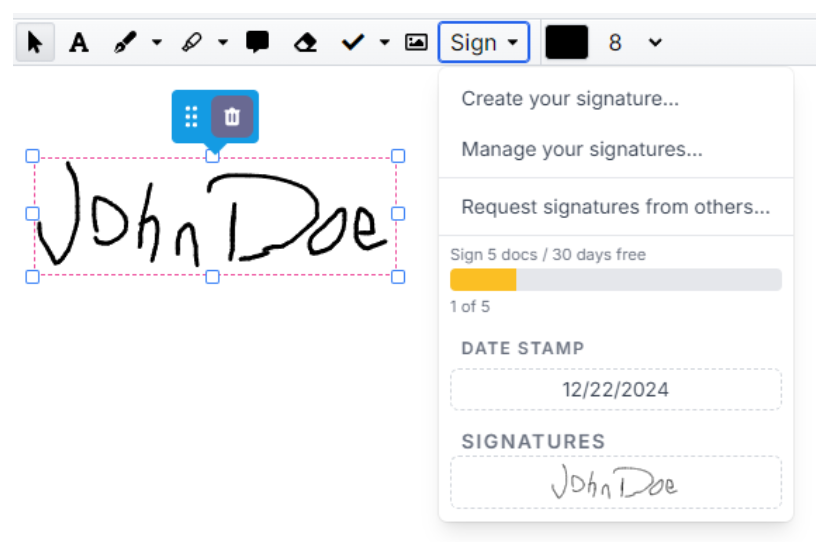
- Once the PDF is opened in the DocHub preview page, locate the Sign dropdown in the menu at the top.
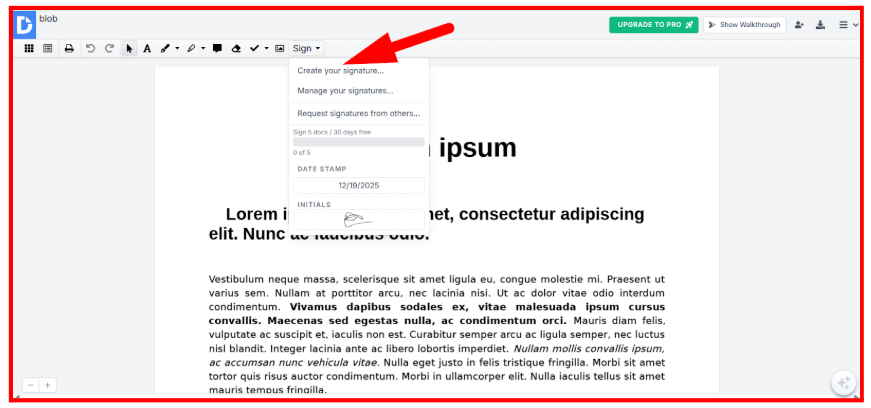
- Click on “create your signature” to add your signature.
- Choose from four signature options:
- Use your phone as a signature pad (a QR code will be generated for you to scan).
- Draw your signature directly using your mouse or trackpad.
- Upload a scanned image of your signature.
- Type your signature, and DocHub will generate a stylized version for you.
See our guide to the different types of signatures
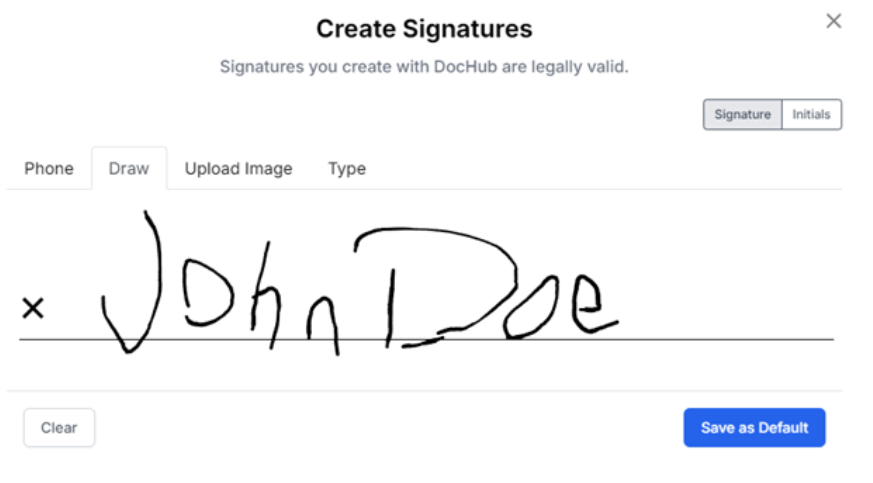
- Save your signature once completed.
- Drag and drop the signature onto the document, and adjust its size and position as needed.
Step 4: Save and Share the Signed PDF
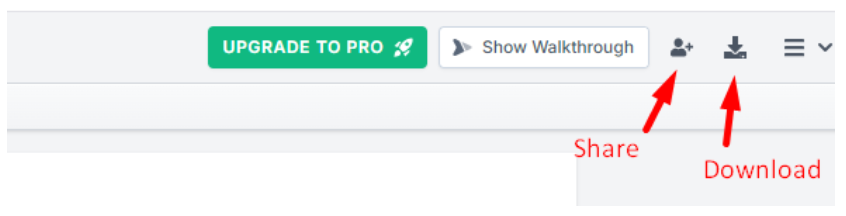
- Once your signature is placed, you can choose how to finalize the document using the buttons at the top right corner of the page:
- Email or Share: Send the signed document as an email attachment or generate a shareable link. See our guide on sending a document for eSignature.
- Download/Export: Save the signed PDF to your computer, Google Drive, or Dropbox.
Why SignWell is Our Preferred Option for Signing PDFs in Chrome
Legally Binding and Secure
SignWell ensures that every PDF you sign in Chrome meets U.S. and international eSignature laws, providing a legally binding signature with encryption and secure storage. You can trust that your documents are protected from tampering.
No Downloads or Sign-Up Required
Unlike other tools that may require software downloads or complicated setups, SignWell works entirely in your Chrome browser; there’s no need to sign in. This makes signing PDFs fast, hassle-free, and accessible on any device.
Step-By-Step Guided Workflow
SignWell guides both you and your recipients through the signing process. From placing signatures and initials to adding dates and checkboxes, everything is intuitive, reducing mistakes and ensuring documents are completed the first time.
Advanced Features for Teams
With a free SignWell account, you can set signing orders, use templates, and enable automatic reminders. These features streamline team workflows, making PDF signing faster and more organized than with other Chrome tools.
Easy Download and Sharing Options
Once your PDF is signed, SignWell offers flexible options for saving and sharing it. You can download directly to your device, store it securely in your SignWell account, or share it with others via email, without ever leaving Chrome.
Simplify PDF Signing in Chrome With SignWell
Signing PDFs in Chrome can be quick and hassle-free with the right tools. Whether you choose the rich features of SignWell or a trusted Chrome extension, this guide helps you streamline the signing process with ease and security.
SignWell offers a powerful eSignature solution designed for both personal and professional needs. With legally binding signatures, reusable templates, and detailed audit trails, SignWell ensures secure, compliant, and seamless document workflows, all accessible from your browser.
SignWell for free today to start signing PDFs effortlessly
Frequently Asked Questions (FAQs)
Can I sign PDFs in Chrome without an internet connection?
Most browser-based PDF signing tools, including SignWell and DocHub, require an internet connection to save, track, and validate your signature. Offline signing typically needs dedicated software.
Are PDF signatures created in Chrome legally recognized?
Yes. Electronic signatures added through reputable platforms like SignWell are legally binding under U.S. laws (ESIGN Act) and international regulations (eIDAS), just like handwritten signatures.
Can multiple people sign a PDF at different times in Chrome?
Yes. Tools like SignWell let you set signing orders so recipients can sign sequentially. Chrome extensions like DocHub also let you send documents to multiple people for signatures at different times.
What types of signatures can I use when signing PDFs in Chrome?
You can type your name, draw your signature with a mouse or touchpad, or upload an image of your signature. Some tools also allow QR codes or stylized signatures for added flexibility.
How do I know if a PDF has been tampered with after signing?
Secure PDF signing tools add audit trails and lock documents after signing. Any changes to the document after signing will be detected and recorded, giving you proof of authenticity.